> For the complete documentation index, see [llms.txt](https://documentation.alluxio.io/ee-ai-en/llms.txt). Markdown versions of documentation pages are available by appending `.md` to page URLs; this page is available as [Markdown](https://documentation.alluxio.io/ee-ai-en/data-access/fuse-based-posix-api.md).
# POSIX API
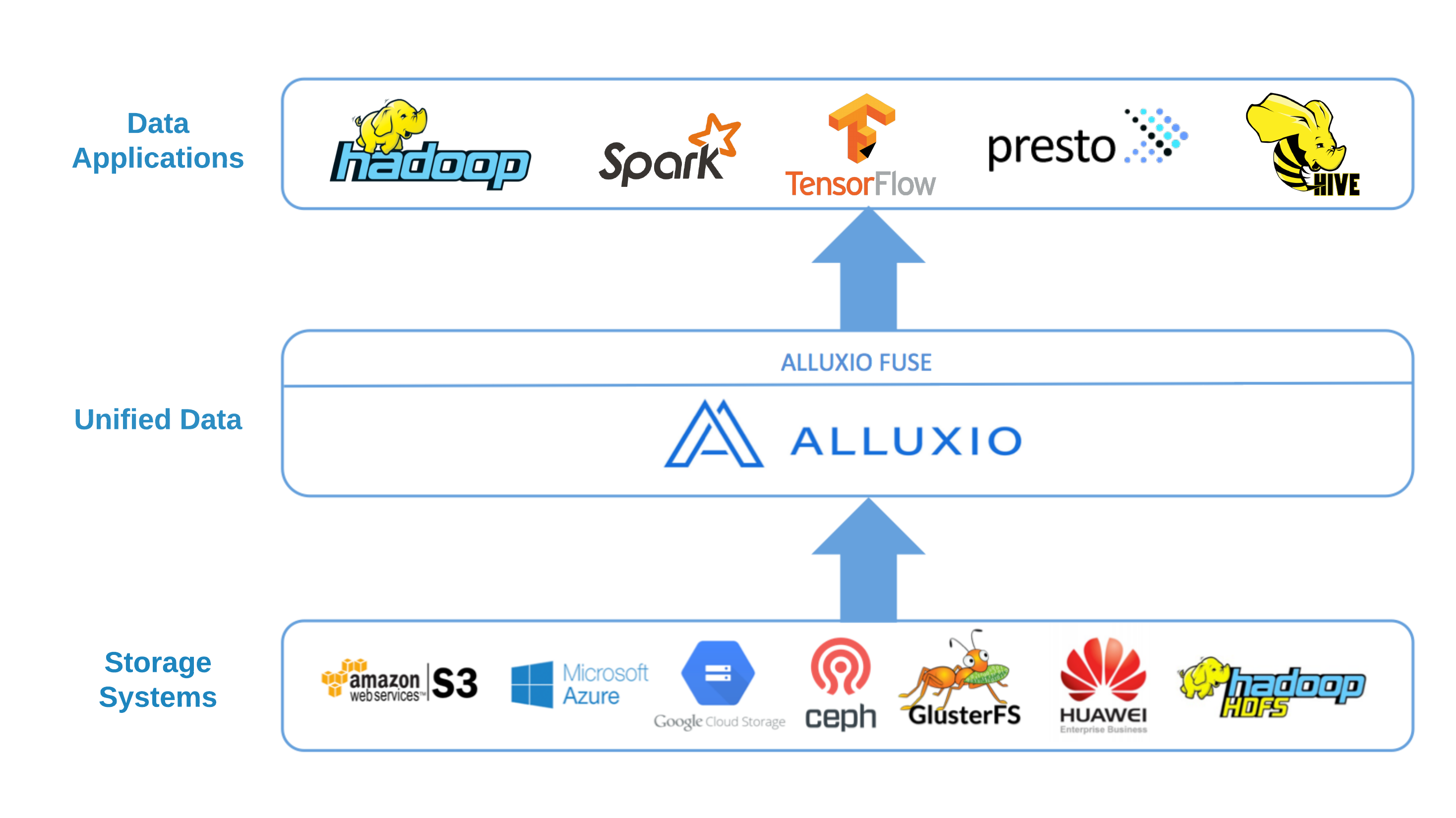
Alluxio's POSIX API allows you to mount the Alluxio namespace as a standard filesystem on most Unix-like operating systems. This feature, commonly known as "Alluxio FUSE," lets you use standard command-line tools (`ls`, `cat`, `mkdir`) and existing applications to interact with data in Alluxio without any code changes.
Unlike specific filesystem wrappers like S3FS, Alluxio FUSE acts as a generic caching and data orchestration layer for the many storage systems Alluxio supports, making it ideal for accelerating I/O in workloads like AI/ML model training and serving.
{% hint style="warning" %}
Based on the [Filesystem in Userspace (FUSE)](https://en.wikipedia.org/wiki/Filesystem_in_Userspace) project, the mounted filesystem provides most basic operations but is not fully POSIX-compliant due to Alluxio's distributed nature. See the [POSIX Compatibility](#posix-compatibility) section for details.
{% endhint %}
## When to Use FUSE
The FUSE interface is particularly powerful for traditional applications and modern AI/ML workloads. Common use cases include:
* **AI/ML Model Training**: When training models with frameworks like PyTorch or TensorFlow, you can read datasets directly from the mounted FUSE path. This simplifies data access and leverages Alluxio's caching to dramatically speed up training jobs. See [Model Loading](/ee-ai-en/performance/model-loading.md) for performance tuning.
* **Model Serving**: For inference servers that need to load models quickly, FUSE provides low-latency access to models stored in Alluxio.
* **Legacy Applications**: Applications that expect a standard filesystem can be pointed to the FUSE mount to read and write data from Alluxio without modification.
* **Interactive Data Exploration**: Data scientists and engineers can use shell commands (`ls`, `cat`, `head`) to explore and interact with data in Alluxio just like a local filesystem.
## Prerequisites
* [ ] **Alluxio cluster is running and reachable** from the node or pod that will host FUSE. If it isn't, see [Installing on Kubernetes](/ee-ai-en/start/installing-on-kubernetes.md) or [Installing on Docker](/ee-ai-en/start/installing-on-docker.md).
* [ ] **`/dev/fuse` device** present on the host (Docker / Bare-Metal) or on the Kubernetes nodes that will host FUSE pods. On most modern Linux distributions this is available by default; check with `ls -l /dev/fuse`.
Each [Quick Start](#quick-start) subsection below lists additional deployment-specific prerequisites.
## Quick Start
Three deployment methods are supported. Use the first that applies to your environment:
* [**Method 1: Kubernetes with CSI**](#method-1-kubernetes-with-csi-recommended) — standard, recommended approach for Kubernetes clusters. Requires the CSI driver (deployed by default with the Alluxio Operator).
* [**Method 2: Kubernetes with DaemonSet**](#method-2-kubernetes-with-daemonset) — when CSI is unavailable or disabled (`alluxio-csi.enabled: false`).
* [**Method 3: Docker / Bare-Metal**](#method-3-docker-bare-metal) — standalone Docker container on any Linux host.
### Method 1: Kubernetes with CSI (Recommended)
Method-specific prerequisites:
* [ ] **Alluxio cluster ready:**
```shell
kubectl -n alx-ns get alluxiocluster
```
Expected: `CLUSTERPHASE` = `Ready`.
* [ ] **CSI driver deployed** (default with the Alluxio Operator):
```shell
kubectl -n alluxio-operator get pod -l app=alluxio-csi-nodeplugin
```
Expected: CSI nodeplugin pods are `Running` on each node. If CSI was disabled during operator installation (`alluxio-csi.enabled: false`), use [Method 2: DaemonSet](#method-2-kubernetes-with-daemonset) instead.
* [ ] **FUSE PVC exists:**
```shell
kubectl -n alx-ns get pvc alluxio-cluster-fuse
```
Expected: PVC exists (it will be `Pending` until a pod consumes it — this is normal).
The [Container Storage Interface (CSI)](https://github.com/container-storage-interface/spec/blob/master/spec.md) is the standard, recommended way to use Alluxio FUSE in Kubernetes. The Alluxio Operator automatically provisions a PersistentVolumeClaim (PVC) named `alluxio-cluster-fuse` when the cluster is installed.
To use it, mount this PVC into your application pods. The operator will handle the creation and binding of the underlying PersistentVolume (PV).
**Example Pod Configuration:**
Save the following configuration to a file named `fuse-pod.yaml`:
```yaml
apiVersion: v1
kind: Pod
metadata:
name: fuse-test-0
namespace: alx-ns
labels:
app: alluxio
spec:
containers:
- image: ubuntu:22.04
imagePullPolicy: IfNotPresent
name: fuse-test
command: ["sleep", "infinity"]
volumeMounts:
- mountPath: /data
name: alluxio-pvc
mountPropagation: HostToContainer
volumes:
- name: alluxio-pvc
persistentVolumeClaim:
claimName: alluxio-cluster-fuse
```
Create the pod:
```shell
# Idempotent
kubectl apply -f fuse-pod.yaml
```
Verify the pod is running and the FUSE mount is accessible:
```shell
kubectl -n alx-ns get pod fuse-test-0
```
Expected: `STATUS` = `Running`, `READY` = `1/1`.
Key details:
* **Shared FUSE Process**: Multiple pods on the same Kubernetes node can use the same PVC and will share a single Alluxio FUSE process for efficiency.
* **`mountPropagation: HostToContainer`**: This setting is critical. It ensures that if the FUSE process crashes, the mount point can be automatically recovered and re-propagated to your container.
Once mounted, you can interact with the `/data` directory as if it were the root of your Alluxio namespace.
### Method 2: Kubernetes with DaemonSet
If your Kubernetes version or environment does not support CSI, you can deploy FUSE using a DaemonSet. This approach runs a FUSE pod on each node (or a subset of nodes you select).
1. **Configure the DaemonSet:** Before deploying your Alluxio cluster, modify your `alluxio-cluster.yaml` to use the `daemonSet` type and specify a host path for the mount.
```yaml
apiVersion: k8s-operator.alluxio.com/v1
kind: AlluxioCluster
spec:
fuse:
type: daemonSet
hostPathForMount: /mnt/alluxio/fuse # will use /mnt/alluxio/fuse if not specified
nodeSelector:
alluxio.com/selected-for-fuse: true
```
This will deploy FUSE pods on all nodes with the label `alluxio.com/selected-for-fuse: true`. Label the nodes first:
```shell
kubectl label nodes alluxio.com/selected-for-fuse=true
```
2. **Mount in Your Application Pod:** In your application pod, mount the `hostPath` where the FUSE DaemonSet exposes the filesystem.
```yaml
apiVersion: v1
kind: Pod
metadata:
name: fuse-test-0
namespace: alx-ns
labels:
app: alluxio
spec:
containers:
- image: ubuntu:22.04
imagePullPolicy: IfNotPresent
name: fuse-test
command: ["sleep", "infinity"]
volumeMounts:
- mountPath: /mnt/alluxio
name: alluxio-fuse-mount
mountPropagation: HostToContainer
volumes:
- name: alluxio-fuse-mount
hostPath:
path: /mnt/alluxio
type: Directory
```
Similar to the CSI method, `mountPropagation` is essential for auto-recovery.
3. **Verify:** After deploying, confirm the DaemonSet pods are running and the mount is accessible:
```shell
kubectl -n alx-ns get pod -l app=alluxio-fuse
```
Expected: FUSE pods are `Running` on each labeled node.
### Method 3: Docker / Bare-Metal
On hosts without Kubernetes, the Alluxio FUSE client runs as a standalone Docker container in host-network mode. The reference setup is one FUSE container per client host, pointing at the Alluxio cluster brought up during [Docker Installation](/ee-ai-en/start/installing-on-docker.md).
Create the host mount point (ownership must match the alluxio UID inside the image, which is `1000`), then launch the container:
```shell
sudo mkdir -p /mnt/alluxio/fuse
sudo chown 1000:1000 /mnt/alluxio/fuse
sudo docker run -d --name alluxio-fuse --net=host --restart=always \
--device /dev/fuse --cap-add SYS_ADMIN --security-opt apparmor=unconfined \
-e ALLUXIO_JAVA_OPTS="" \
-v /mnt/alluxio:/mnt/alluxio:rshared \
alluxio/alluxio-enterprise:AI-3.9-16.0.0 \
fuse -o allow_other -- /mnt/alluxio/fuse
```
* `--device /dev/fuse` + `--cap-add SYS_ADMIN` grant the capabilities the container needs to mount FUSE. `--security-opt apparmor=unconfined` is required on distributions whose default AppArmor profile blocks FUSE from containers.
* `-v /mnt/alluxio:/mnt/alluxio:rshared` uses recursive shared mount propagation so the FUSE mount is visible from the host.
* Fill in `` with the etcd endpoint for cluster discovery and JVM heap / direct-memory sizing — see [Customizing Resource Limits](#customizing-resource-limits).
**✅ Verify** the mount:
```shell
ls /mnt/alluxio/fuse/
```
Lists any registered UFS mounts. `Transport endpoint is not connected` means the container exited — check `sudo docker logs alluxio-fuse`.
### Verifying End-to-End Access
Regardless of method, confirm a round-trip read and write through the FUSE mount, then verify the same file appears when listed directly via Alluxio. The examples below assume the FUSE mount is at `/data` (Kubernetes) or `/mnt/alluxio/fuse` (Docker / Bare-Metal).
{% tabs %}
{% tab title="Kubernetes (Operator)" %}
```shell
# Write + read through FUSE from the application pod
kubectl -n alx-ns exec -it fuse-test-0 -- bash -c 'echo "hello, world!" > /data/s3/message.txt'
kubectl -n alx-ns exec -it fuse-test-0 -- cat /data/s3/message.txt
# Verify the file is visible via Alluxio directly
kubectl -n alx-ns exec -i alluxio-cluster-coordinator-0 -- alluxio fs ls /s3/message.txt
```
{% endtab %}
{% tab title="Docker / Bare-Metal" %}
```shell
# Write + read through FUSE
echo "hello, world!" | sudo tee /mnt/alluxio/fuse/s3/message.txt
cat /mnt/alluxio/fuse/s3/message.txt
# Verify the file is visible via Alluxio directly
docker exec alluxio-coordinator alluxio fs ls /s3/message.txt
```
{% endtab %}
{% endtabs %}
**✅ Success:** The `cat` returns `hello, world!`, and `alluxio fs ls` shows the same file size, confirming FUSE writes flow through to Alluxio.
## POSIX Compatibility
While most standard filesystem operations are supported, Alluxio FUSE does not provide full POSIX compatibility. Below is a summary of supported and unsupported operations.
### File Operations
| Supported | Unsupported |
| --------------------------------------------------------------------------------------------------------------------------------------------------------------------------------------------------------------------------------------------------------------------------------------------------- | --------------------------------------------------------------------------------------------------------------------------------------------------------------------------------------------------------------------------------------------------------------------------------------------------------------------------------------------------------------------- |
|
Create and delete files
Rename files
Sequential, random and concurrent reads
Sequential, append, random and concurrent writes
Truncate or overwrite files
Symbolic links (ln -s)
Get file status (stat)
|
Hard links (ln)
File locking (flock)
Changing ownership (chown) or permissions (chmod)
Changing access/modification times (utimens)
Extended attributes (chattr, sticky bit, xattr)
Atomic concurrent writes to the same file
|
> **Note**: Some features like advanced writes and symbolic links are supported but disabled by default. See the following sections for instructions on how to enable them:
>
> * [Enabling Append and Random Writes](#enabling-append-and-random-writes)
> * [Enabling Symlinks](#enabling-symlinks)
### Directory Operations
| Supported | Unsupported |
| ----------------------------------------------------------------------------------------------------------------------------------------------------------------------------- | -------------------------------- |
|
Create and delete directories
Rename directories
List directory contents (ls)
Get directory status (stat)
| No major unsupported operations. |
{% hint style="warning" %}
**Write Cache mode imposes additional restrictions.** When Write Cache is enabled on the cluster (`alluxio.write.cache.enabled: "true"`), `rename()` returns `EIO` and files become immutable after close. See [FUSE Write Optimization](/ee-ai-en/performance/fuse-write-cache.md#posix-compatibility-in-write-cache-mode) for the full list of restrictions and workarounds.
{% endhint %}
### Other Limitations
* **Special Files**: Device files, pipes, and FIFOs are not supported.
* **Path Names**: Avoid using special characters (`?`, `\`) or patterns (`./`, `../`) in file or directory names.
* **Capacity Reporting**: `df`, `statvfs`, and similar calls do not reflect the UFS backing-store capacity. Treat the mount as effectively unbounded for sizing purposes.
* **Metadata Freshness**: File and directory metadata is cached in the kernel for `attr_timeout` / `entry_timeout` seconds (default 60). Files modified directly on the UFS while a FUSE client is running may appear stale for up to this window. Lower the timeouts if you need sub-minute consistency against external writers — see [Customizing FUSE Mount Options](#customizing-fuse-mount-options).
## Advanced Configuration
### Enabling Append and Random Writes
To enable **append and random write** operations, set the following property in your Alluxio configuration (`alluxio-site.properties` or via the Helm chart values):
```properties
alluxio.user.fuse.random.access.file.stream.enabled=true
```
This allows applications to modify existing files, which is useful for workloads like logging or databases, but may have performance implications.
### Enabling Symlinks
Symbolic links (symlinks) are disabled by default. To enable them, set the following property in your Alluxio configuration (`alluxio-site.properties` or via the Helm chart values):
```properties
alluxio.user.fuse.symlink.enabled=true
```
### Enabling Parallel `getattr` Operations
By default, the FUSE kernel module serializes `lookup` and `readdir` operations within the same directory. To improve performance for workloads requiring high concurrency metadata operations (such as `getattr` on many files within a single directory), you can enable parallel directory operations.
To enable this feature, set the following property in your Alluxio configuration (`alluxio-site.properties`):
```properties
alluxio.fuse.parallel.dirops.enabled=true
```
> **Note**: This feature is currently recommended for **read-only** workloads.
### Isolating Data Access
By default, the FUSE mount provides access to the entire Alluxio namespace. For multi-tenant environments, you may want to restrict a user's access to a specific subdirectory.
#### Using Ephemeral CSI Volumes (Recommended)
Use ephemeral CSI volumes with the `mountPath` volume attribute to scope access to a subdirectory. This approach avoids auto-recovery issues associated with `subPath` and does not require creating separate `StorageClass` or `PVC` resources.
```yaml
# ... pod spec ...
volumeMounts:
- name: alluxio-fuse
mountPath: /data
mountPropagation: HostToContainer
volumes:
- name: alluxio-fuse
csi:
driver: alluxio
volumeAttributes:
alluxioClusterName: alluxio-cluster
alluxioClusterNamespace: alx-ns
mountPath: s3/path/to/files
# ...
```
Multiple subdirectories can share the same FUSE instance by defining additional volumes with different `mountPath` values.
#### Using `subPath` (Deprecated)
> **Deprecated**: The `subPath` method breaks the auto-recovery mechanism and is difficult to recover automatically. Use ephemeral CSI volumes instead.
You can mount a specific subdirectory within the Alluxio namespace into your pod using the `subPath` field.
```yaml
# ... pod spec ...
volumeMounts:
- mountPath: /data
name: alluxio-pvc
mountPropagation: HostToContainer
subPath: s3/path/to/files
# ...
```
### Accessing FUSE from Another Namespace
If your application runs in a different namespace from the Alluxio cluster, you must create a corresponding PVC in your application's namespace.
1. **Create the PVC in your namespace:** The `storageClassName` must point to the FUSE StorageClass created by the operator in the Alluxio namespace (e.g., `alx-ns-alluxio-cluster-fuse`). Save the following to a file named `csi-pvc.yaml`:
```yaml
apiVersion: v1
kind: PersistentVolumeClaim
metadata:
name: alluxio-fuse
spec:
accessModes:
- ReadWriteOnce
resources:
requests:
storage: 1Mi
storageClassName: alx-ns-alluxio-cluster-fuse
```
2. **Apply the PVC:**
```shell
kubectl create -f csi-pvc.yaml -n
```
Verify:
```shell
kubectl -n get pvc alluxio-fuse
```
Expected: PVC exists.
### Customizing FUSE Mount Options
You can tune FUSE performance by providing mount options in the `AlluxioCluster` YAML. These options are passed directly to the underlying FUSE driver. For a full list, see the [FUSE documentation](http://man7.org/linux/man-pages/man8/mount.fuse3.8.html).
**Example Configuration:**
```yaml
fuse:
mountOptions:
- allow_other
- kernel_cache
- entry_timeout=60
- attr_timeout=60
- max_idle_threads=128
- max_background=128
```
**Commonly Tuned Options:**
| Mount option | FUSE kernel default | Alluxio Operator default | Description |
| -------------------- | ------------------- | ------------------------ | ------------------------------------------------------------------------------------------------------------------------------------------------------------------------------------- |
| `kernel_cache` | disabled | enabled | Allows the kernel to cache file data, which can significantly improve read performance. Only use this if the underlying files are not modified externally (i.e., outside of Alluxio). |
| `auto_cache` | disabled | disabled | Similar to `kernel_cache`, but the cache is invalidated if the file's modification time or size changes. Prefer this over `kernel_cache` on bare-metal deployments with mutable data. |
| `attr_timeout=N` | 1.0 | 60 | Seconds for which file and directory attributes (permissions, size) are cached by the kernel. Increasing this reduces metadata overhead on repeated `stat` calls. |
| `entry_timeout=N` | 1.0 | 60 | Seconds for which filename lookups are cached. Increasing this speeds up path resolutions for workloads with many repeated file opens. |
| `max_background=N` | 12 | 128 | Maximum number of outstanding background requests the FUSE kernel driver is allowed to queue. Increase for workloads with high I/O concurrency. |
| `max_idle_threads=N` | 10 | 128 | Maximum number of idle FUSE daemon threads. Increasing this prevents overhead from frequent thread creation/destruction under heavy concurrent load. |
| `ro` | disabled | disabled | Mount the FUSE filesystem as read-only. Useful for serving datasets that should never be modified through the mount. |
> For read-heavy AI/ML workloads, see [File Reading Optimization](/ee-ai-en/performance/file-reading.md) for additional Alluxio-level tuning beyond FUSE mount options.
> On bare-metal client hosts driving hundreds of concurrent threads, raise `max_idle_threads` and `max_background` from the 128 default to `256`.
### Customizing Resource Limits
You can adjust the CPU and memory resources allocated to the FUSE pods and their JVMs.
```yaml
apiVersion: k8s-operator.alluxio.com/v1
kind: AlluxioCluster
spec:
fuse:
resources:
limits:
cpu: "12"
memory: "36Gi"
requests:
cpu: "1"
memory: "32Gi"
jvmOptions:
- "-Xmx22g"
- "-Xms22g"
- "-XX:MaxDirectMemorySize=10g"
```
**Memory limit formula:**
```
memory limit ≥ -Xmx + -XX:MaxDirectMemorySize + 2–4 GiB (JVM overhead)
```
For the config above (`-Xmx22g`, `-XX:MaxDirectMemorySize=10g`): minimum limit is 22 + 10 + 2 = 34 GiB, set to 36 GiB in the example.
> If `-XX:MaxDirectMemorySize` is omitted, the JVM defaults it to the same value as `-Xmx`, so the container limit typically needs to be 2.5× `-Xmx` or more.
**Profile reference:**
| Profile | `-Xmx` | `-XX:MaxDirectMemorySize` | Memory limit | When to use |
| --------------- | ------ | ------------------------- | ------------ | ---------------------------------------------------------------- |
| Evaluation | 8g | 4g | 16 GiB | Dev/test and small clusters |
| Standard | 22g | 10g | 36 GiB | Production Kubernetes pods (default for most workloads) |
| High throughput | 48g | 64g | 120 GiB | Bare-metal hosts with large NIC bandwidth and hot-read workloads |
## Performance
### Diagnosing Where You Are Bottlenecked
When throughput is below expectation, the symptom tells you where to look:
| Symptom | Likely bottleneck | What to do |
| -------------------------------------------------------------- | ------------------------------------- | --------------------------------------------------------------------------------------------------------------------------- |
| FUSE container CPU pinned near `100% × cores` (`top`, `nstat`) | FUSE-side is saturated | Add another FUSE client node, or tune mount options — see [Customizing FUSE Mount Options](#customizing-fuse-mount-options) |
| FUSE CPU well below saturated, but latency is high | Worker or UFS not serving fast enough | See [Slow read performance](#slow-read-performance) for step-by-step diagnosis, including cache-metric checks |
| Neither — low CPU and low latency but low throughput | Client host (CPU, NIC, kernel) | Run `top`, `nstat`, and `iperf3` against the worker |
### Profiling a FUSE Container
To capture a CPU flamegraph from a live FUSE container, add `--cap-add SYS_PTRACE` to the `docker run` in addition to `--cap-add SYS_ADMIN`. Then attach [async-profiler](https://github.com/async-profiler/async-profiler) (or any JVM profiler you prefer) to the FUSE JVM inside the container and copy the generated HTML out with `docker cp` for analysis.
## Troubleshooting
### FUSE mount shows "Transport endpoint is not connected"
**Symptom**: Accessing the mount path returns `Transport endpoint is not connected`.
**Cause**: The FUSE process crashed or was restarted, and the mount was not recovered.
**Solution**:
{% tabs %}
{% tab title="Kubernetes" %}
1. Verify `mountPropagation: HostToContainer` is set in the application pod spec. Without it, auto-recovery cannot work.
2. Check if the FUSE pod is running:
```shell
kubectl -n alx-ns get pod -l app=alluxio-fuse
```
3. If the FUSE pod is running but the mount is stale, delete and recreate the application pod:
```shell
kubectl -n alx-ns delete pod fuse-test-0
kubectl apply -f fuse-pod.yaml
```
{% endtab %}
{% tab title="Docker / Bare-Metal" %}
The host-level FUSE mount becomes stale when the container exits. Unmount it, then restart:
```shell
sudo fusermount3 -u /mnt/alluxio/fuse # or: sudo umount -l /mnt/alluxio/fuse
sudo docker restart alluxio-fuse
```
Check `sudo docker logs alluxio-fuse` for the underlying reason the container exited in the first place.
{% endtab %}
{% endtabs %}
### FUSE process exits with OOM
**Symptom**: FUSE repeatedly crashes — on Kubernetes, `CrashLoopBackOff` / `Exit Code 137` / `OOMKilled`; on Docker, the container stops and `docker logs` reports `OutOfMemoryError` or a SIGKILL from the cgroup.
**Cause**: The container memory limit is too low for the configured JVM heap and direct memory.
**Solution**: Ensure the memory limit satisfies:
```
memory limit ≥ -Xmx + -XX:MaxDirectMemorySize + 2–4 GiB
```
Check FUSE logs before the crash:
{% tabs %}
{% tab title="Kubernetes" %}
```shell
kubectl -n alx-ns logs --previous | tail -50
```
{% endtab %}
{% tab title="Docker / Bare-Metal" %}
```shell
sudo docker logs --tail 50 alluxio-fuse
```
{% endtab %}
{% endtabs %}
Look for `OutOfMemoryError` to determine whether to increase `-Xmx` or `-XX:MaxDirectMemorySize`. See [Customizing Resource Limits](#customizing-resource-limits).
### Application pod stuck in ContainerCreating
**Symptom**: Application pod remains in `ContainerCreating` status after requesting the FUSE PVC.
**Cause**: The CSI driver is not installed, or the FUSE PVC does not exist.
**Solution**:
1. Check events on the pod:
```shell
kubectl -n alx-ns describe pod
```
2. If the event mentions the PVC is not found, verify the PVC exists:
```shell
kubectl -n alx-ns get pvc alluxio-cluster-fuse
```
3. If the CSI nodeplugin is missing, verify the operator was installed with CSI enabled (the default). Reinstall the operator without `alluxio-csi.enabled: false` if needed.
### Permission denied on FUSE mount
**Symptom**: `ls: cannot access '/data': Permission denied` when accessing the mount.
**Cause**: The FUSE mount does not include the `allow_other` option, which restricts access to the user who mounted it.
**Solution**: Add `allow_other` to the FUSE mount options in `alluxio-cluster.yaml`:
```yaml
fuse:
mountOptions:
- allow_other
```
Then recreate the Alluxio cluster for the change to take effect.
For fine-grained access control, see [Enabling Authorization for FUSE](https://github.com/TachyonNexus/documentation/blob/AI-3.9-16.0.x/docs-ai/en/administration/security/enabling-authorization-fuse.md).
### Slow read performance
**Symptom**: Reading files through FUSE is significantly slower than expected.
**Diagnosis**:
1. Check if data is cached in Alluxio:
```shell
kubectl -n alx-ns exec -i alluxio-cluster-coordinator-0 -- alluxio fs ls /s3/path/to/file
```
If the file shows 0% cached, the first read will be slow as it fetches from the underlying storage.
2. Check FUSE mount options — ensure `kernel_cache` or `auto_cache` and increased `attr_timeout`/`entry_timeout` values are set. See [Customizing FUSE Mount Options](#customizing-fuse-mount-options).
3. For AI/ML training workloads, preload data before starting training:
```shell
kubectl -n alx-ns exec -i alluxio-cluster-coordinator-0 -- alluxio job load --path /s3/path/to/dataset --submit
```
4. If the symptom is specifically tail latency (P99) rather than average throughput, also investigate worker-side JVM GC pauses and UFS fallback reads under load — check worker logs for UFS read entries and tune GC if pauses are confirmed.
For comprehensive read performance tuning, see [File Reading Optimization](/ee-ai-en/performance/file-reading.md). For benchmarking, see [Benchmarking POSIX Performance](/ee-ai-en/benchmark/benchmarking-posix-performance.md).
## Cleanup
{% tabs %}
{% tab title="Kubernetes" %}
Remove any test pod and custom PVCs created during setup:
```shell
# Delete the test pod
kubectl -n alx-ns delete pod fuse-test-0
# Delete custom PVCs (if created)
kubectl -n alx-ns delete -f custom-sc-pvc.yaml
# Delete cross-namespace PVC (if created)
kubectl -n delete -f csi-pvc.yaml
```
> The `alluxio-cluster-fuse` PVC is managed by the Alluxio Operator and will be cleaned up automatically when the cluster is deleted. Do not delete it manually.
> {% endtab %}
{% tab title="Docker / Bare-Metal" %}
Stop and remove the FUSE container:
```shell
sudo docker stop alluxio-fuse
sudo docker rm alluxio-fuse
```
The FUSE mount at `/mnt/alluxio/fuse` becomes unavailable once the container is removed; the host directory itself persists.
{% endtab %}
{% endtabs %}
## See Also
* [FUSE Non-Disruptive Migration](https://github.com/TachyonNexus/documentation/blob/AI-3.9-16.0.x/docs-ai/en/data-access/fuse/fuse-non-disruptive-migration.md) — migrate FUSE mounts between clusters without stopping running workloads.
* [Benchmarking POSIX Performance](/ee-ai-en/benchmark/benchmarking-posix-performance.md) — measure FUSE throughput and tune against a baseline.
* [Model Loading Optimization](/ee-ai-en/performance/model-loading.md) — AI/ML read-tuning tips on top of the FUSE mount.
* [File Reading Optimization](/ee-ai-en/performance/file-reading.md) — general-purpose read-path tuning that applies to FUSE workloads.